
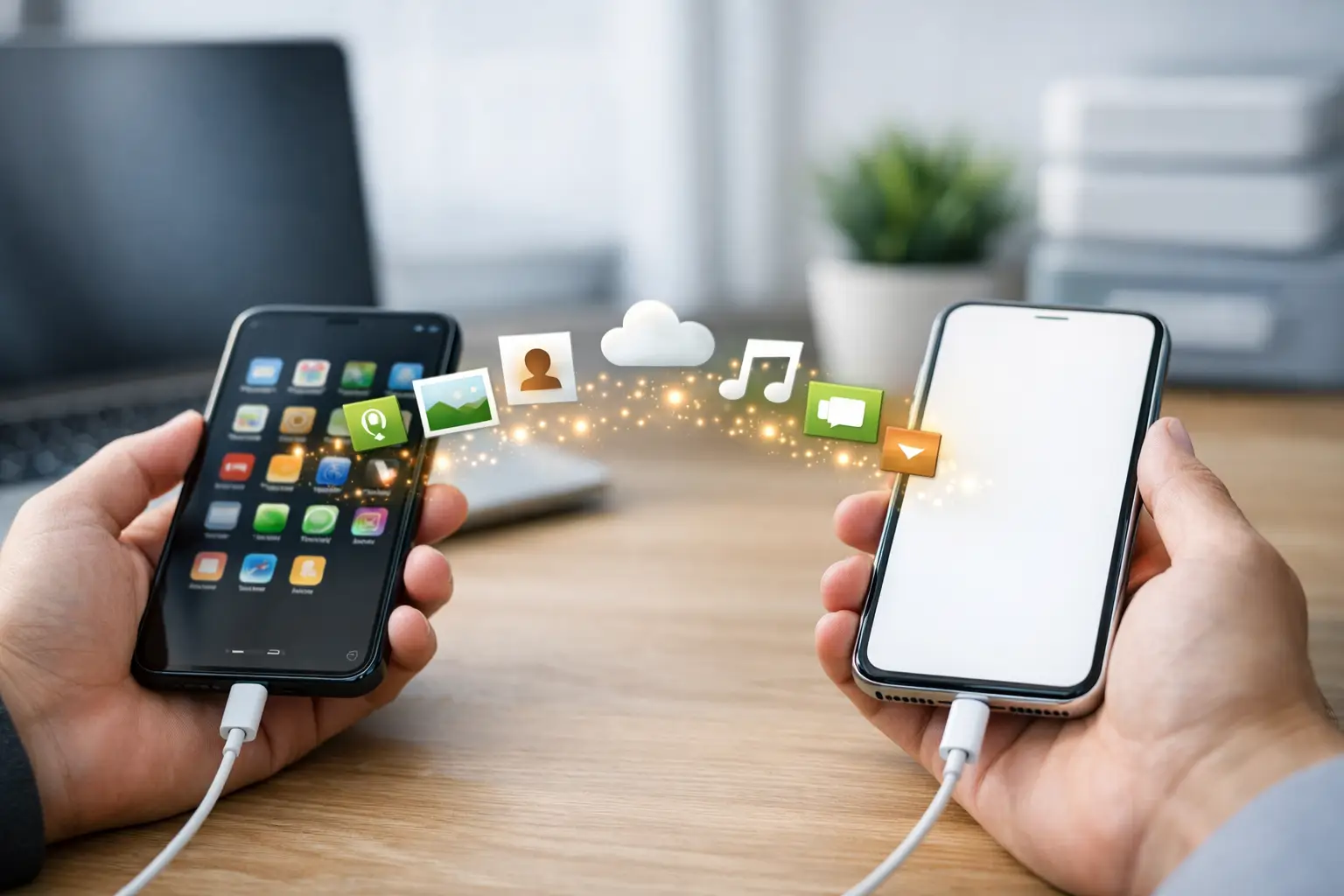
A new phone should feel like an upgrade, not a stressful evening spent wondering where your photos, contacts or banking apps have gone. A professional data transfer to new phone service moves the information you rely on every day while reducing the risk of lost files, missed messages and interrupted access to work.
For many people, the transfer is the most important part of changing a device. The handset itself may be new, but your photos, notes, passwords, calendar, WhatsApp chats and apps are what make it yours. Whether you are replacing a damaged phone, upgrading an older model or setting up devices for your team, taking the right approach saves time and avoids unpleasant surprises.
What a data transfer to new phone service can move
The exact transfer depends on your old and new devices, their operating systems, available storage and the condition of the original handset. In most cases, a technician can help move your contacts, photos, videos, calendars, text messages, call history, documents and compatible apps.
Account settings can often be restored too. This includes email accounts, Wi-Fi networks, browser information and cloud-based files. If you use an iPhone, an Android phone or a combination of both, the process needs to be chosen carefully. Moving from one Apple device to another is different from transferring data between Samsung, Google, Xiaomi, Huawei, Oppo, OnePlus or other Android devices.
Some information is deliberately protected and cannot simply be copied. Banking apps, authentication apps, digital identity services and certain work applications may require you to sign in again or confirm the new device. That is a security feature, not a transfer failure. A good service helps you identify these steps before you leave with the new phone.
Why a direct transfer is not always enough
Phone manufacturers make migration tools look simple: place two devices together, scan a code and wait. This can work very well when both phones are functioning, fully charged, updated and have enough storage. It can become less straightforward when the old phone has a cracked screen, a weak battery, charging problems or a damaged touch display.
A transfer may also stop because the new phone has less storage than the old one. A 256 GB device cannot receive every file from a full 512 GB phone without some planning. Large videos, duplicate photos and old downloads may need to be reviewed first, while important files should be backed up before anything is removed.
Cloud backups are useful, but they are not always complete. Photos may be stored in more than one place, chats may have separate backup settings and files saved locally in an app can be missed. For this reason, it is sensible to check the most valuable information after the transfer rather than assuming every item is present.
Prepare your old phone before the appointment
A little preparation makes a transfer quicker and safer. If possible, charge both phones and bring their charging cables. Make sure you know the passcode for the old device and the password for the Apple Account or Google account connected to it. Without these details, security protections can prevent access to backups and accounts.
Before handing over a phone, do not erase it or remove accounts. The old device is the source for your data, and it should only be reset after you have checked that everything important has arrived safely on the new one.
It also helps to bring the SIM card or have your eSIM details available. Your mobile number may be needed to receive verification codes when signing back into email, banking or messaging services. If you use a password manager, make sure you can access its master password or recovery method.
For a smooth appointment, check these four things beforehand:
- Both devices are charged and you have the necessary cables.
- You know the device passcode and account passwords.
- You have access to your mobile number for security codes.
- You have not factory-reset the old phone.
The checks that matter after your data transfer
A completed transfer is not just about seeing familiar app icons on the home screen. It is about confirming that the phone is ready for normal life. Start with contacts, recent photos, calendar appointments and notes. These are quick checks that show whether the main account data has arrived.
Next, open your essential apps. For most people, that means WhatsApp, email, banking, navigation, school or work apps, and any authentication app used to approve logins. WhatsApp chat history needs particular attention because its restoration depends on the correct backup and account settings. If your conversations matter, check them before the old device is wiped.
Test calls, text messages, mobile data, Wi-Fi, Bluetooth and the camera. If you have moved to a new SIM or eSIM, make sure your number works for incoming and outgoing calls. It is much easier to correct a setup issue while the original phone and account details are still available.
Moving from a broken or unresponsive phone
A damaged device does not automatically mean your data is gone. If the phone still powers on and the internal storage is healthy, there may be a way to recover and transfer your information. A screen replacement, battery replacement or charging-port repair can sometimes make the device accessible long enough to complete the move.
The situation depends on the fault. A phone with a black screen may still be running, while a phone that does not charge may only need a charging-port repair before a backup can be made. However, serious water damage, motherboard faults or a device that cannot be unlocked can limit what is possible.
This is where a proper diagnosis is useful. Rather than repeatedly trying cables, apps and reset options at home, have the device assessed first. Resetting a phone in the hope that it will start working is particularly risky because it can permanently remove the very data you are trying to save.
Data transfers for work phones and small teams
For a business, changing phones is not simply a personal setup task. Staff may need access to email, contacts, shared calendars, authentication tools, customer photos, job-management apps and company documents from the moment they return to work. A missing app or failed login can delay a job, a sale or a customer response.
It is worth planning business transfers around the services employees genuinely use. Company-managed devices may have security policies, mobile device management or restricted applications that need an administrator’s approval. Personal and company data should also be kept separate where possible, especially when an employee receives a replacement device.
For several handsets, a consistent process prevents confusion: confirm the user, transfer approved data, test essential work functions and record which device has been issued. This approach keeps downtime low and gives managers more confidence that devices are ready for use.
When professional help is the sensible option
A home transfer can be perfectly suitable for a straightforward upgrade between two working phones. Professional support becomes more valuable when the old device is damaged, storage is full, accounts are inaccessible, the transfer has failed repeatedly or important work data is involved.
At Logiexpert Smartphone Repairs, technicians can assess the condition of both devices, carry out the transfer carefully and help with the checks that make a new phone usable from day one. The focus is practical: protect the data you need, set up the functions you use and avoid unnecessary downtime.
Keep the old phone until you have used the new one for a day or two and confirmed that your key photos, messages, apps and accounts are in place. Once you are satisfied, the old device can be reset safely, passed on or recycled with far more confidence.
Lascia un commento