
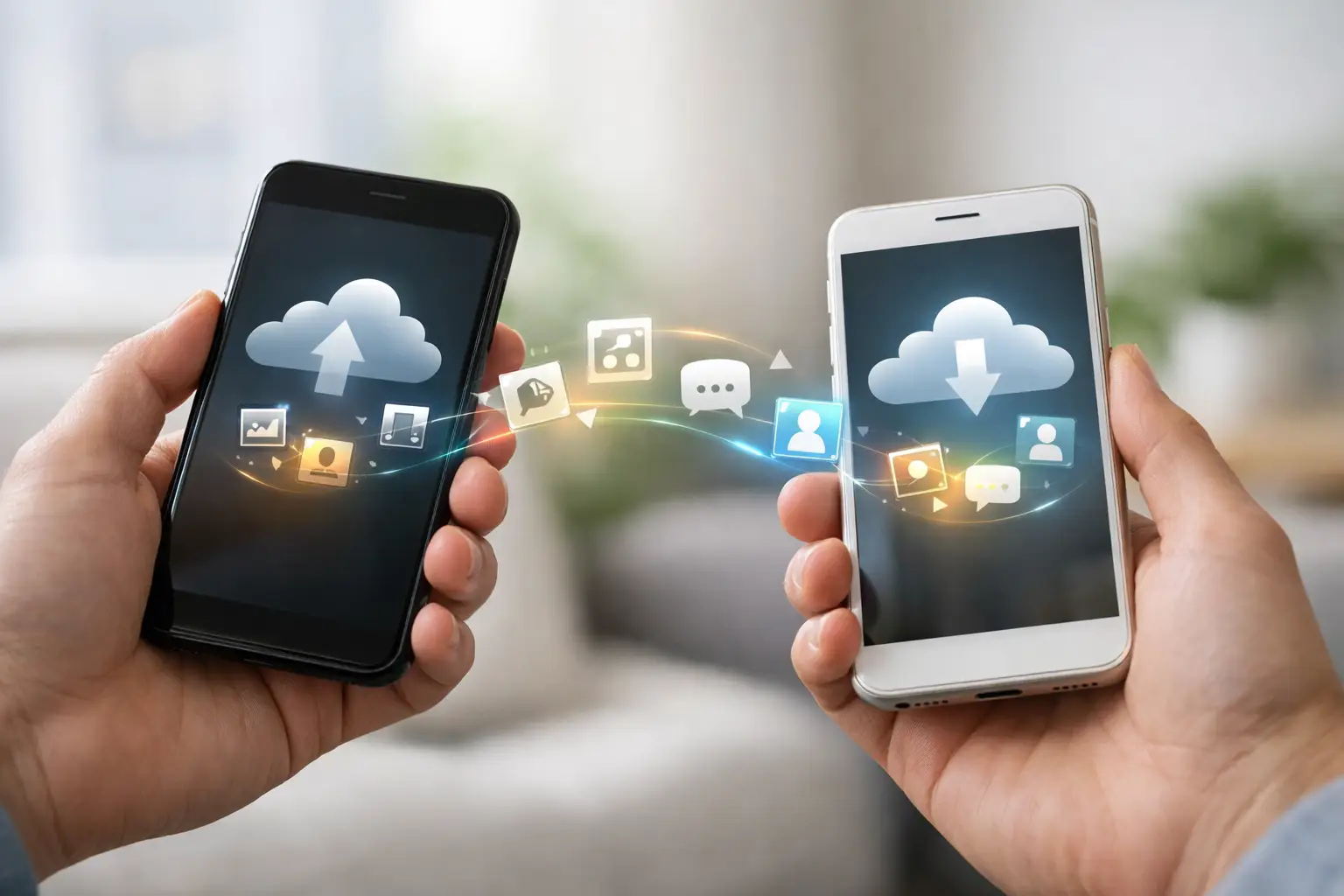
A new phone is exciting until you realise your banking app, family photos, WhatsApp chats and work contacts are still on the old one. To transfer phone data properly, you need more than a quick tap through the setup screen. A few checks before, during and after the move can prevent missing messages, lost logins and unnecessary stress.
Whether you are replacing a damaged handset, upgrading your device or setting up phones for a team, the safest approach depends on the two devices, their condition and the type of data you cannot afford to lose.
Prepare before you transfer phone data
The transfer process starts before the new phone is switched on. First, charge both devices. A data transfer can take anything from a few minutes to several hours, especially when there are years of photos, videos and app data involved. Keep both phones connected to power where possible and use reliable Wi-Fi rather than mobile data.
Check that the old phone has enough storage available to create a current backup. If it is nearly full, remove obvious duplicates, old downloads or videos you no longer need. Do not start deleting photos or apps in a hurry unless you have confirmed they are backed up elsewhere.
You should also make sure you know the passwords for the main accounts connected to the phone. That usually means your Apple Account or Google Account, email address, device PIN, and passwords for banking or authentication apps. Many people only discover they do not know these details after they have erased their old phone.
If the old device has a cracked screen, weak battery, charging problem or keeps restarting, deal with that first if you can. A phone that switches off halfway through may leave you with an incomplete transfer. In some cases, a screen, battery or charging-port repair is the quickest route to recovering the data safely.
Choose the right transfer method
Most modern phones offer a guided setup option when you place the new handset next to the old one. This is generally the easiest option because it copies settings, contacts, photos, apps and much of your account information in one process. It works best when both phones are working normally and the old one can stay unlocked.
An iPhone-to-iPhone move can use Apple’s Quick Start process. Android phones usually offer a setup transfer through Google, sometimes using a cable for a faster and more complete copy. Samsung devices can also use Smart Switch, which is useful when moving from another Android phone or from an iPhone.
Cloud backup is another reliable method. Your photos, contacts, calendars and many app settings may already be connected to iCloud, Google or another account. This can be especially useful if the old phone is no longer usable but a recent backup exists. The trade-off is time: restoring a large backup over Wi-Fi may continue in the background for hours, and some apps will need to download again separately.
A cable transfer is often preferable for large photo libraries or business phones with lots of files. It is usually quicker and less dependent on Wi-Fi quality. However, you need the correct cable or adapter, and not every type of app data transfers in the same way.
What usually transfers, and what needs extra care
Contacts, photos, videos, calendars and standard text messages are usually straightforward, provided they are linked to the correct account or included in the transfer. The difficult items tend to be the ones protected for security reasons.
WhatsApp chats are a common example. They can transfer successfully, but you should confirm that the backup is current before changing phones. Check the app’s chat backup settings and make sure the same phone number and account are available on the new device. Do not delete WhatsApp from the old phone until you have opened the chats on the new one and checked recent conversations and media.
Banking apps, digital identity apps and authenticator apps often require a fresh sign-in or security check. This is normal. Banks do this to protect your account, so a direct phone transfer does not always bring the app across ready to use. Keep your old phone available until every important app has been activated on the new one.
Saved passwords may transfer through Apple Passwords, Google Password Manager or another password manager, but only if syncing was enabled. Notes can be another surprise. Some are saved locally on the old device rather than in iCloud, Google or Microsoft. Open your notes app before the transfer and check where the notes are stored.
Downloaded music, offline maps, files in private folders and content inside certain apps may need to be downloaded or moved again manually. This does not mean the transfer failed. It reflects how each app handles privacy, licensing and stored files.
A practical check before erasing your old phone
Once the transfer appears complete, resist the temptation to reset the old phone immediately. Use the new device for a short period and test the things you use in real life: call someone, send a message, open your email and take a photo. Check your contacts and recent images, then open the apps that matter most for work, travel and payments.
For peace of mind, work through this short check:
- Confirm your mobile number can make and receive calls and texts.
- Check that recent photos, videos, contacts and calendar entries are present.
- Sign in to banking, email, authentication and work apps.
- Open WhatsApp or your preferred messaging app and check recent chats.
- Verify that any eSIM, physical SIM or mobile data plan is active.
For company devices, check access to work email, shared files, mobile-device management tools and any two-factor authentication used by staff. A transfer that looks complete can still leave an employee unable to access a key system on Monday morning.
Only when these checks are complete should you erase the old phone. If you are selling, giving away or recycling it, first sign out of your Apple Account or Google Account and remove any eSIM plan where appropriate. A factory reset alone may not remove activation protection if the account is still linked to the device.
Moving between iPhone and Android
Switching within the same operating system is normally simpler, but moving from iPhone to Android or Android to iPhone needs a little more planning. Contacts, photos, calendars and many messages can transfer, yet some app purchases, voice notes, settings and chat histories may work differently.
Before switching, update both phones to their latest available software. Use the official transfer option offered during the new phone’s setup, rather than installing lots of apps first. Starting clean gives the transfer tools the best chance of finding the data they need.
Be realistic about what will change. Apps bought through Apple’s App Store do not automatically become paid Android apps, and the same applies in reverse. Some accessories, such as smartwatches, may need to be unpaired and set up again. If you use an eSIM, your network may require a new activation process rather than moving the plan automatically.
When a damaged phone makes data transfer harder
A damaged device does not always mean the data is gone. If the phone still turns on, receives a charge and responds to touch, a transfer or backup may still be possible. Even a badly cracked display can sometimes be used long enough to approve the transfer.
The situation is more difficult when the display remains black, the touch function has failed, the phone will not charge or it is stuck in a restart loop. In these cases, the solution may be a temporary repair that allows the phone to start and unlock. Data recovery is not guaranteed, particularly if the device has suffered liquid damage or serious motherboard failure, but acting early improves the chance of a successful outcome.
Avoid repeatedly forcing a failing phone to restart or attempting unknown recovery software. It can make diagnosis harder and, in some circumstances, cause further issues. A technician can first assess whether the problem is the screen, battery, charging port, software or a more serious internal fault.
Get help when the data matters
For many straightforward upgrades, the built-in transfer tools are enough. But professional help is sensible when the old phone is damaged, you are moving sensitive business data, the transfer keeps failing, or you simply do not want to risk losing irreplaceable photos and messages.
At Logiexpert Smartphone Repairs, we can assess the condition of both devices and help with data transfers alongside repairs, software updates and device setup. If a fault is stopping the transfer, we focus first on the practical fix that gives your data the best chance of moving safely.
Keep the old phone until the new one has proved itself in everyday use. That small bit of patience is often what turns a phone upgrade from a frustrating recovery job into a clean start.
Lascia un commento