
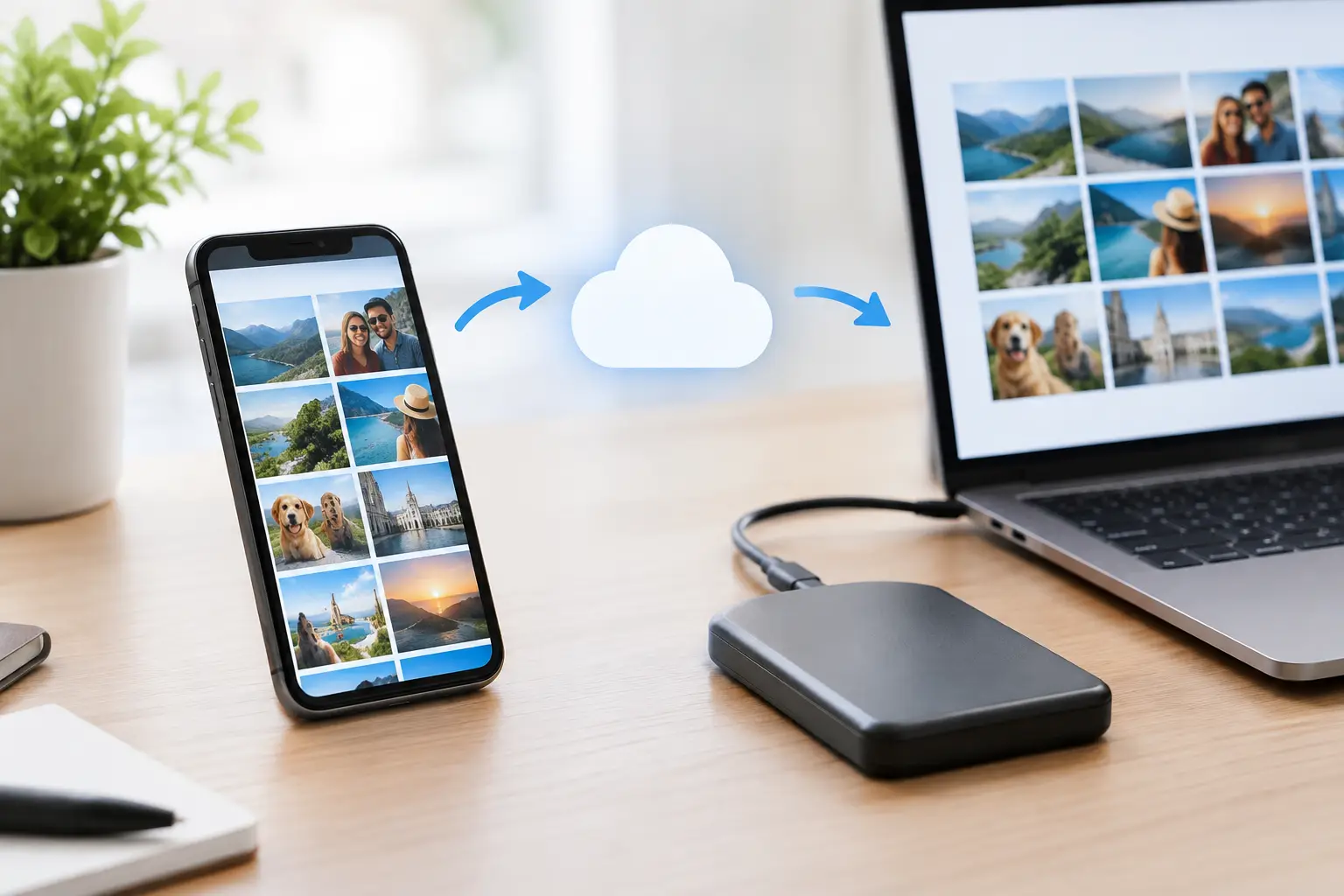
A dropped phone, a failing battery or a device that will not switch on can turn years of family photos into a stressful recovery job. Knowing how to back up Android photos before something goes wrong is one of the simplest ways to protect the images you cannot replace – from holiday snapshots to work records and screenshots with important information.
The best method depends on how many photos you have, how much cloud storage you need and whether you prefer your files stored online, at home or in both places. For most people, automatic cloud backup plus a second copy on a computer offers the best protection.
Start by checking where your photos are stored
Open the Gallery app or Google Photos and look at a few recent pictures. On many Android phones, photos are saved in the DCIM folder, while screenshots, WhatsApp images and downloaded files may be in separate folders. A backup that only covers your camera folder can leave other important images behind.
Also check how much storage your phone is using. If it is almost full, photos may not save correctly and cloud backups can pause. Delete obvious duplicates, blurred pictures and old downloads first, but do not rely on deleting images until you have confirmed they are backed up elsewhere.
How to back up Android photos with Google Photos
Google Photos is the easiest option for many Android users because it can back up images automatically whenever your phone has a suitable internet connection. It also makes it easier to find photos later by date, location or subject.
Open Google Photos, sign in with your Google account and tap your profile picture in the top corner. Choose Photos settings, then Backup, and turn it on. You can select the account you want to use and decide whether photos should back up using mobile data or Wi-Fi only.
Wi-Fi only is usually the sensible setting, particularly if you have a limited mobile-data allowance. If you need your latest photos protected while travelling or working away from home, allowing mobile data can be useful, but keep an eye on your allowance.
Google gives each account a limited amount of free storage shared across Photos, Gmail and Google Drive. Once that space is full, new photos will stop backing up. Check the storage indicator regularly rather than assuming the backup is still running.
Make sure every important folder is included
In Google Photos, go to Photos settings, then Backup, and look for Back up device folders. Here you can choose folders such as Screenshots, WhatsApp Images or Downloads.
This matters more than people expect. A photo received in WhatsApp, a scan of a passport or a screenshot of a booking confirmation may not be in the main camera folder. Select only the folders you genuinely need, otherwise your cloud storage can fill up quickly with memes, duplicate downloads and temporary images.
Confirm the backup has finished
Do not assume that turning backup on means everything is already safe. Open Google Photos and check the status under your profile picture. It may say that backup is complete, still in progress or waiting for Wi-Fi.
If you have thousands of photos, the first backup may take several hours or longer. Leave the phone charging and connected to reliable Wi-Fi. Avoid repeatedly closing the app or switching off the phone while the initial backup is running.
Save a second copy to a computer
Cloud backup is convenient, but a second copy on a computer gives you extra control. It can also be helpful if you have a large photo library and do not want to pay for additional online storage.
Connect your Android phone to a Windows computer or Mac using a USB data cable. If the phone only charges, unlock it and choose File transfer or Transfer files from the USB notification. Then open the phone storage on your computer and copy the folders you need, usually DCIM, Pictures, Screenshots and any messaging-app image folders.
Create a clear folder structure on the computer, such as “Android Photos 2026” with folders for each month or event. Once copied, open a selection of photos to make sure the files transferred properly. A folder appearing on your computer does not always mean every image has copied successfully.
For stronger protection, copy that computer folder to an external hard drive as well. Keep the drive somewhere safe and do not leave it permanently connected to the computer, where accidental deletion or a malware problem could affect it too.
Other cloud storage options
Google Photos is not the only choice. Samsung Gallery can sync with OneDrive on compatible Samsung devices, while other services may offer automatic camera uploads through their own apps. These can be a good fit if you already pay for Microsoft storage or use a particular cloud service for work.
The key is to check exactly what the service backs up. Some platforms upload only camera photos, while others include videos and selected folders. Video files use storage quickly, so you may need to choose between backing up everything at full quality and saving only the most valuable videos.
For business users, keep personal and work images separate where possible. Photos containing customer details, documents or device information may need to follow your company’s data-protection rules. A personal cloud account is not always the right place for company files.
Avoid the common backup mistakes
The most common mistake is discovering that backup has been paused after the phone is damaged. Battery-saving settings, a full cloud account, poor Wi-Fi or an app that has been signed out can all stop automatic uploads.
Check your backup every few weeks, especially before sending your phone for repair, resetting it or upgrading to a new device. Open your photo app, confirm the latest image is present online and check that the correct account is signed in.
Be careful when clearing storage as well. In Google Photos, the option to free up space removes local copies that are already backed up. That is useful when your phone is full, but only use it after checking that your photos appear in the cloud and can be opened normally.
Another risk is treating one account as a complete backup plan. If you lose access to that account, forget the password or delete photos by mistake, recovery can become difficult. Use a strong password, enable two-step verification and retain a second copy on a computer or external drive.
Before a repair, reset or phone replacement
If your screen is cracked but the phone still works, back up your photos immediately. Damage can worsen without warning, particularly if the battery is swollen, the charging port is unreliable or the device has been exposed to water.
Before a factory reset, make sure the backup is complete and test it on another device if possible. Sign in to your Google account on a computer or another phone and confirm you can see recent photos. This takes a few minutes and can prevent a permanent loss.
If the screen is unresponsive, the phone will not charge or it cannot be unlocked, do not keep forcing it to restart or attempting random fixes. Continued use can make data recovery harder in some cases. A repair technician may be able to restore enough access for you to complete a backup, although this depends on the fault, the model and whether the phone is encrypted.
At Logiexpert Smartphone Repairs, we regularly see customers who only think about their photos after a phone failure. Fast repair can help restore access, but prevention is always less stressful and often less expensive than trying to recover files from a badly damaged device.
A simple routine that keeps photos safe
Set automatic cloud backup to run over Wi-Fi, check its status once a month and copy your photo folders to a computer or external drive every few months. If you take lots of videos, manage your storage before it fills up rather than waiting for uploads to stop.
Your phone may be replaced, repaired or lost at some point. Your photos do not have to disappear with it when a small backup routine is already in place.
Lascia un commento