
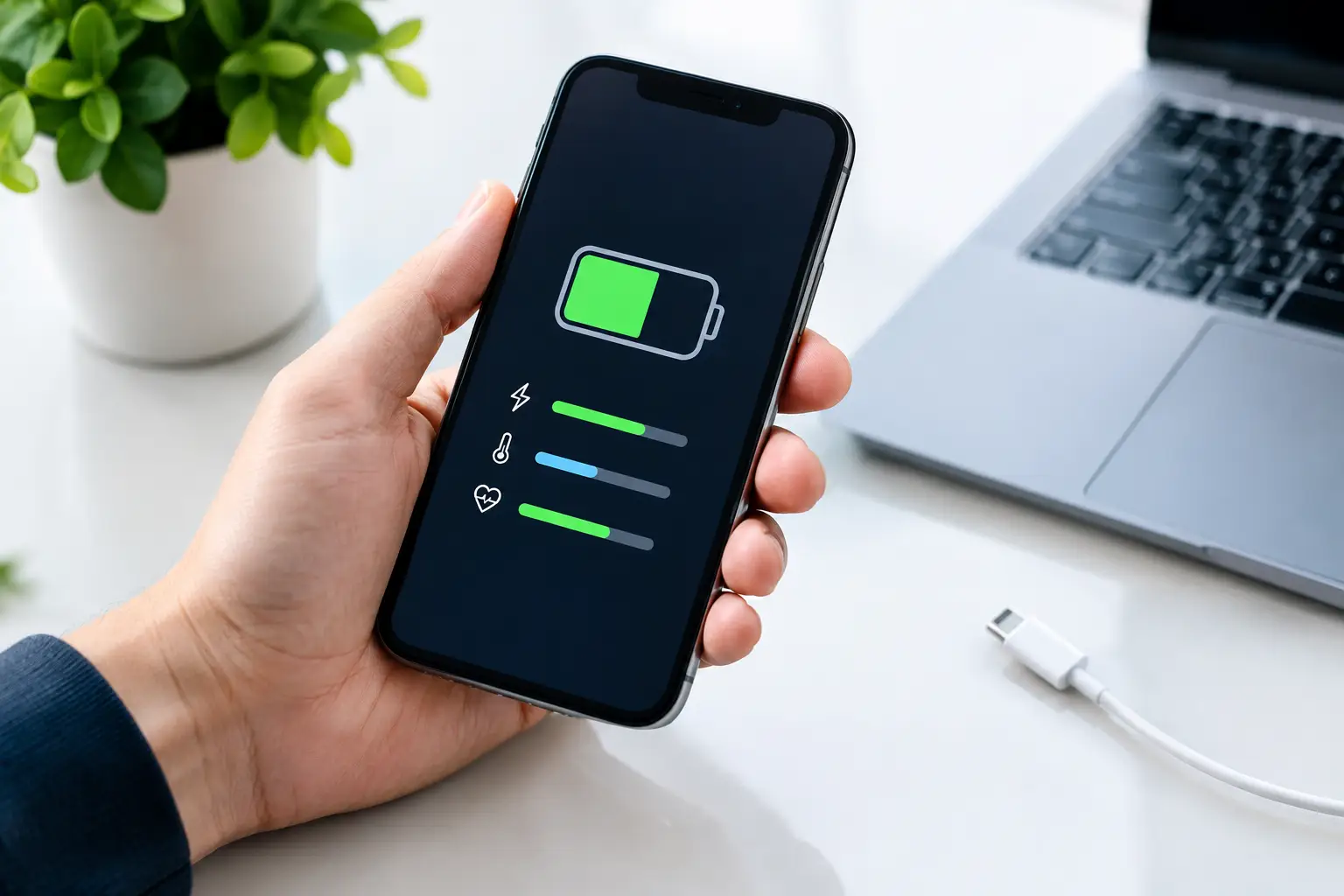
Your phone was fully charged before breakfast, yet it is asking for power again by lunchtime. That is frustrating when you rely on it for work messages, banking, travel and family calls. Knowing how to diagnose phone battery problems helps you separate a worn battery from a charging fault, an app issue or a problem inside the phone.
A battery does not usually fail without warning. Shorter battery life, unexpected shutdowns, overheating and slow charging are all useful clues. The key is to look at the pattern rather than replacing parts based on one bad day of use.
Start by checking the symptoms
Think about when the problem happens. A phone that loses charge only while using maps, video calls or mobile data may be working harder than usual. A phone that drops from 30% to 1% while sitting untouched is more likely to have a battery health issue, software fault or internal power problem.
Rapid battery drain is the most common complaint, but it has several causes. Screen brightness, poor network signal, location services and background apps all use power. If the issue started immediately after installing an app or software update, check that first. If the drain has gradually become worse over many months, battery wear becomes more likely.
Also notice whether the percentage display behaves strangely. A battery reading that falls in large jumps, gets stuck on one percentage or changes after restarting the phone may need recalibration, software attention or professional testing.
Check battery use in Settings
Most Apple and Android phones show which apps have used the most battery over the last day or several days. Look for an app taking an unusually high share of power when you have barely used it. Social media, navigation, streaming, games and video conferencing often appear high on the list, but they should match your actual use.
Close or update an app that looks suspicious, then monitor the phone for a day. You can also reduce background activity for non-essential apps. This is a useful test, not a permanent excuse for poor battery life. If the phone still drains quickly with few apps running, the battery itself needs closer attention.
On iPhones, Battery Health in Settings can show maximum capacity and whether the system recommends service. A capacity below 80% commonly means the phone will no longer hold charge as reliably as it once did. Android phones vary by brand, but many include battery diagnostics, device care tools or battery protection settings.
How to diagnose phone battery health at home
Battery age matters. Lithium-ion batteries naturally lose capacity with charging cycles, heat and time. For many people, noticeable decline starts after around two to three years, although heavy users may see it earlier. A phone used for navigation, hotspot access or long work calls every day will age differently from one used lightly.
Run a simple controlled check. Charge the phone to 100% using a known-good cable and charger. Use it normally for several hours, but make a note of demanding tasks such as gaming, video streaming or mobile hotspot use. Then compare that day with a quieter day. If the battery disappears at the same pace regardless of what you do, the issue is less likely to be normal usage.
Do not rely solely on free battery-health apps. They can offer an estimate, but they cannot always measure the condition of the cell accurately, especially on newer phones with manufacturer controls. A professional diagnostic can test charging behaviour, current draw and battery performance more reliably.
Watch for unexpected shutdowns
A phone that switches off at 20% or 30% is a strong warning sign. The battery may be unable to deliver stable power when the phone demands it, particularly in cold weather, during a call or while opening the camera.
Restarting can temporarily alter the displayed percentage, but it does not repair a tired battery. If the problem returns repeatedly, a battery replacement may be the sensible option. Continuing to depend on an unreliable phone can mean missed calls, lost navigation or an unavailable payment app at the wrong moment.
Pay attention to heat
Warmth during fast charging, a long video call or gaming can be normal. A phone that becomes uncomfortably hot while idle, charging slowly or doing simple tasks is not. Remove the case, stop charging and let it cool naturally. Avoid putting it in a fridge or near a window in cold weather, as sudden temperature changes can cause further problems.
Persistent heat can come from a failing battery, a demanding app, poor signal, a damaged charging component or internal board damage. If heat comes with a swollen screen, lifting back cover, chemical smell or distortion of the casing, stop using and charging the device. A swollen battery needs urgent professional handling and should never be punctured or pressed back into place.
Rule out charging problems before replacing the battery
Not every phone that will not charge needs a new battery. The cable, adapter and charging port take daily wear, especially when a phone is charged beside a bed, in a car or while travelling.
Try a different high-quality cable and compatible charger first. A damaged cable may charge intermittently, while an underpowered adapter may make charging seem unusually slow. If possible, test the same charger with another device. This quickly tells you whether the accessory is the cause.
Next, inspect the charging port in good light. Pocket fluff can compact inside the port and stop the connector seating fully. The cable may feel loose, disconnect with a slight movement or only work at a particular angle. Do not force metal tools into the port, as the internal pins are easy to damage. Careful professional cleaning is safer when debris is packed in or the port already feels loose.
Wireless charging creates another useful comparison for compatible phones. If wireless charging works but the cable does not, the battery may be fine and the charging port may need cleaning or repair. If neither method works, further testing is needed because the fault could involve the battery, charging circuit or software.
Check software and network causes
A battery can appear faulty when the phone is repeatedly searching for a signal. In areas with weak mobile coverage, the device works harder to stay connected. Test battery life for a few hours on stable Wi-Fi or with mobile data switched off when practical. If the drain improves significantly, poor signal may be contributing.
Install pending system and app updates, then restart the phone. Updates can fix power-management bugs, although an update may also temporarily increase battery use while the phone re-indexes photos, downloads files or restores background data. Give it a day or two before deciding that a new update has caused permanent damage.
Check basic settings as well. Very high brightness, always-on display features, frequent email fetching, background location access and 5G can reduce runtime. There is a trade-off: limiting these features may extend battery life, but it can also delay notifications or reduce convenience. The goal is to identify unnecessary power use, not make the phone less useful.
If the issue began after liquid exposure, a hard drop or a previous repair, avoid repeated charging attempts. Corrosion and damaged connectors can worsen over time, and a battery replacement alone may not solve the problem.
When a professional diagnosis is the better choice
Home checks are helpful when the problem is caused by an app, cable or setting. Professional diagnostics are worthwhile when the phone shuts down unexpectedly, heats up, shows a swollen casing, will not charge consistently or loses power unusually fast after basic checks.
A technician can assess the battery alongside the port, charging circuit and software condition. That matters because replacing a battery without testing the wider charging system can leave you paying for a repair that does not address the real fault. The right repair also depends on the make and model, since Apple, Samsung, Google, Xiaomi, Huawei, Oppo and OnePlus devices have different parts and diagnostic procedures.
At Logiexpert Smartphone Repairs, the initial diagnosis is free, so you can understand what is wrong before committing to a repair. If a battery replacement is needed, using a high-quality part and receiving warranty-backed work gives you more confidence than relying on a temporary charging workaround.
Back up your data before handing over any device, particularly if it is restarting or behaving unpredictably. Bring the charger if you suspect an intermittent charging issue, as it can help reproduce the fault. A clear description of when the problem started and what you have already tried also speeds up the diagnosis.
A phone battery should support your day, not force you to plan it around the nearest socket. Test the simple causes first, take warning signs seriously, and get the device checked promptly when the symptoms point to more than ordinary battery wear.
Lascia un commento