
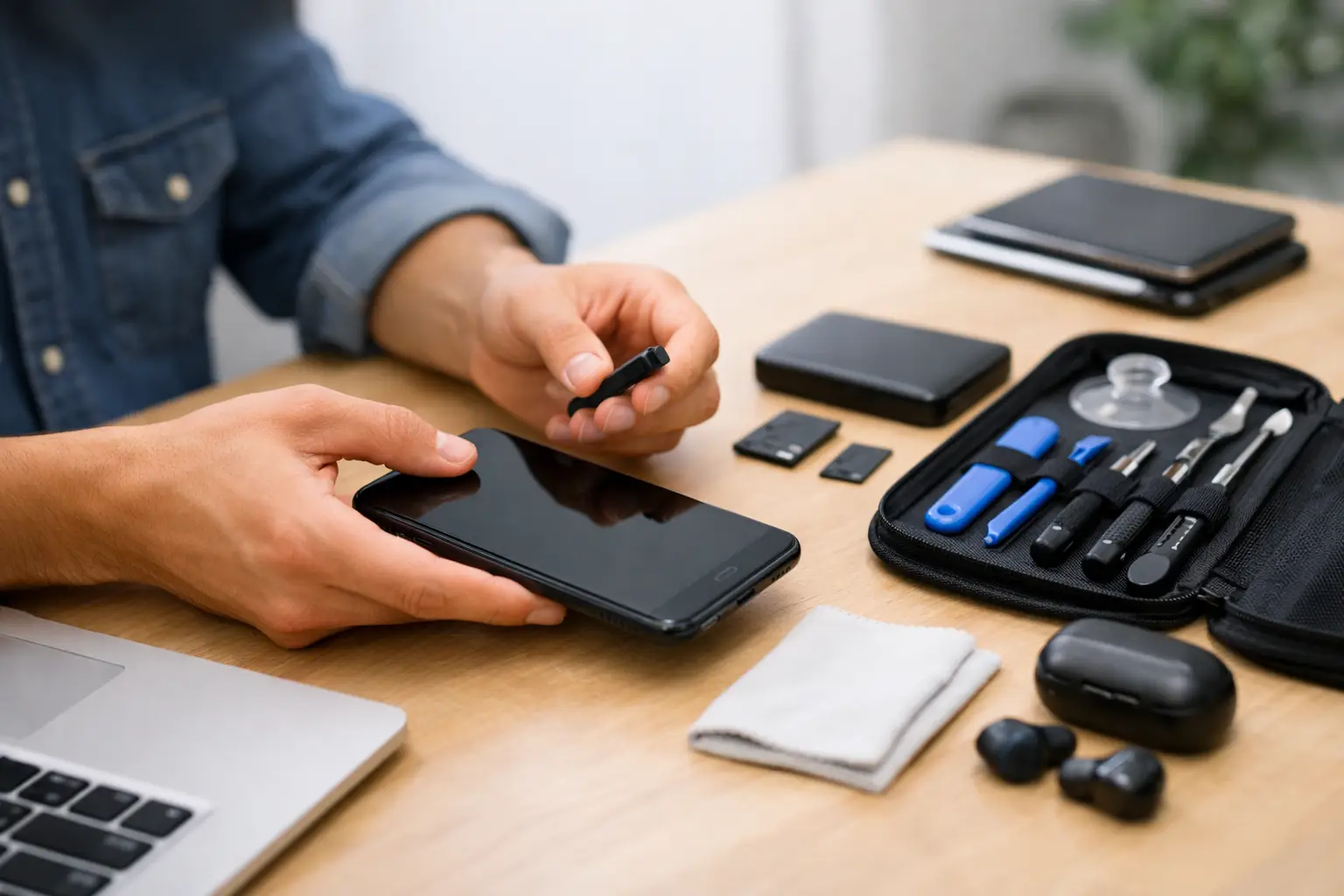
A cracked screen, weak battery or charging problem is frustrating enough. The last thing you need is to lose photos, lock a technician out of the device, or leave private information exposed while it is being repaired. Taking a few minutes to prepare a phone for repair protects your data and helps the repair move forward without avoidable delays.
The right preparation depends on the fault. A screen replacement may need only basic access to test the display, while a software issue or device reset requires a more careful backup. If the phone will not switch on, do not worry – there are still useful steps you can take before handing it in.
Before You Prepare Your Phone for Repair
Start by making a quick note of the problem. Include when it began, whether the phone was dropped or exposed to water, and which functions are affected. For example, does the phone charge only when the cable is held at a certain angle? Is the battery draining unusually quickly? Does the screen respond in some areas but not others?
This information helps the technician diagnose the issue efficiently. It can also prevent confusion if more than one fault is present. A cracked back cover, for instance, may be cosmetic, but it could also have allowed moisture or dust into the phone.
Remove the SIM card if you do not need it in the device during repair. This protects your mobile number and avoids missed calls or messages being delivered to a phone that is temporarily with the repair shop. If you use a physical memory card, remove that too unless it is needed to investigate a storage-related fault.
Back Up What Matters Before Repair
A professional repair should not erase your phone unnecessarily, but any work on electronics carries some risk. A device may need an update, reset or replacement component that reveals an existing fault. A backup gives you a way back if something unexpected happens.
Use your usual cloud backup service, or copy important files to a computer. Check that the backup has completed rather than assuming it has. Photos and videos can take time to upload, particularly if you have not backed up recently or are using mobile data.
Do not overlook information that may sit outside your photo library. Save important documents, downloaded files, voice notes and app data where possible. If you use an authenticator app for work, banking or social media, make sure you have recovery codes or an alternative sign-in method available. Losing access to two-factor authentication can be more disruptive than losing a few photos.
For business phones, check with your IT contact before changing accounts or security settings. Company devices may use mobile device management, encrypted storage or work profiles. Removing the wrong setting can make it harder to reconnect the phone after repair.
Protect Your Privacy Without Blocking Testing
Technicians need to test a repaired device. After a screen replacement, they may check touch response, brightness, cameras, speakers, microphones, charging and wireless connections. After a battery repair, they need to confirm charging behaviour and normal operation. That testing is how a repair is checked properly.
You have a few options. The best choice depends on your phone and the repair required. If possible, create a temporary guest profile or maintenance mode. Some Android phones offer a maintenance feature that gives a technician access to core functions while hiding personal apps, accounts and files.
If your phone does not support this, you may be asked to provide the passcode temporarily so the repair can be tested. Only do this with a repair provider you trust, and change the passcode after you collect the device if that gives you greater peace of mind. Do not write your banking PIN, card details or account passwords in the repair notes.
Before handing the phone over, sign out of sensitive apps where practical. Banking, investment, password manager and private messaging apps deserve particular attention. Removing saved payment cards from digital wallets is also sensible if you will be without the phone for a while.
Turn Off Account Locks at the Right Time
Find My iPhone and Android Factory Reset Protection are valuable security features. They also need to be handled correctly when a phone is being repaired, especially if the work may involve a replacement device, logic board work, a full reset or extensive diagnostics.
For an iPhone, Find My may need to be turned off before certain repairs can be completed. For Android devices, remove the Google account only if the repair specialist advises that it is necessary. Do not reset the phone simply because you are worried about privacy unless you have confirmed the repairer can still inspect the fault afterwards.
This is a common trade-off. A factory reset protects personal data, but it can remove evidence of an intermittent software or app issue. It also makes it impossible to test a fault that occurs only when you are signed in or using a particular feature. Ask what access is genuinely required for your repair, then choose the least disruptive option.
Make the Device Easy and Safe to Handle
Charge the phone to around 30 to 50 per cent if it will hold a charge. This gives the technician enough power to run checks without leaving a swollen or overheating battery connected to power for longer than necessary. If the phone is hot, bulging, smells unusual or has a lifting screen, stop charging it and arrange repair promptly. A swollen battery should be handled with care.
Take off the case, screen protector and accessories unless you have been asked to leave them on. A case can hide damage around the frame or back cover, and accessories can make inspection slower. Keep your charger, cable and stylus unless the fault may be related to one of them. If charging is intermittent, bringing the cable and adapter you normally use can help identify whether the issue is with the phone or its accessories.
If there has been water damage, do not try to dry the phone with a hairdryer, put it in rice, or repeatedly turn it on to check whether it works. Heat and repeated power attempts can make corrosion and internal damage worse. Switch it off if possible and explain exactly what happened.
Share the Details That Help the Repair
When booking or dropping off your device, be clear about the model, the problem and your priorities. Some customers need the fastest possible turnaround because they rely on the phone for work, navigation or school. Others would rather wait for a specific part or choose the most cost-effective option. Both are reasonable, but the repair plan may differ.
Tell the repair specialist if the device has already been repaired, if it has been opened elsewhere, or if it has an aftermarket screen or battery. This does not mean it cannot be repaired. It simply gives the technician a more accurate starting point.
Ask what is included in the diagnosis, whether the quoted price covers parts and labour, and what happens if the fault is more complex than expected. A clear process matters. At Logiexpert Smartphone Repairs, diagnostics are free and the no-fix-no-pay approach means you should know where you stand before committing to work that cannot solve the problem.
If Your Phone Will Not Turn On
You may not be able to back up, sign out or remove account locks from a dead device. Do not delay a necessary repair trying dozens of chargers or forcing repeated restarts. Instead, bring the phone in with its relevant accessories and provide as much information as possible about the last time it worked.
If you know your account credentials, keep them available but do not hand over passwords unnecessarily. Once the phone is powered on, you can be contacted if access is needed for testing. If data recovery is a priority, say so before any reset or software work begins.
After You Collect Your Phone
Before leaving, check the functions related to the repair. Test the screen across all areas, plug in your charger, make a call, try the camera and confirm that Face ID, fingerprint recognition or other security features work as expected. For a battery repair, it is normal to assess performance over the next day or two rather than judging it from a few minutes of use.
Put your SIM card back in, restore any data if needed, and re-enable security features you turned off. Change your passcode if you shared it, then sign back into accounts gradually. This is also a good moment to update your backup settings, so the next repair or accidental loss is less stressful.
A well-prepared phone gives the technician the information and access needed to do the job properly while keeping your personal life protected. That means less downtime, fewer surprises and a faster route back to a phone you can rely on.
Lascia un commento